When installing an operating system or setting up a new hard drive, many users see two options: GPT or MBR. At first glance, these terms look confusing.
Most people searching for this keyword want a simple answer to one question: Which one should I choose?
Both GPT and MBR are disk partition styles. They tell your computer how data is organized on a storage drive.
This matters when installing systems like Windows, formatting drives, or managing large storage devices.
Choosing the wrong option can sometimes prevent your system from booting or limit how much storage your drive can use.
The confusion usually happens because both options appear during installation, but the difference is rarely explained clearly. MBR is the older standard, used for decades.
GPT is the modern replacement, designed for newer computers with better performance and larger storage support.
In this guide, you will learn the quick difference between GPT and MBR, their history, when to use each one, common mistakes, and real-world examples.
By the end, you will know exactly which option is right for your system.
GPT or MBR – Quick Answer
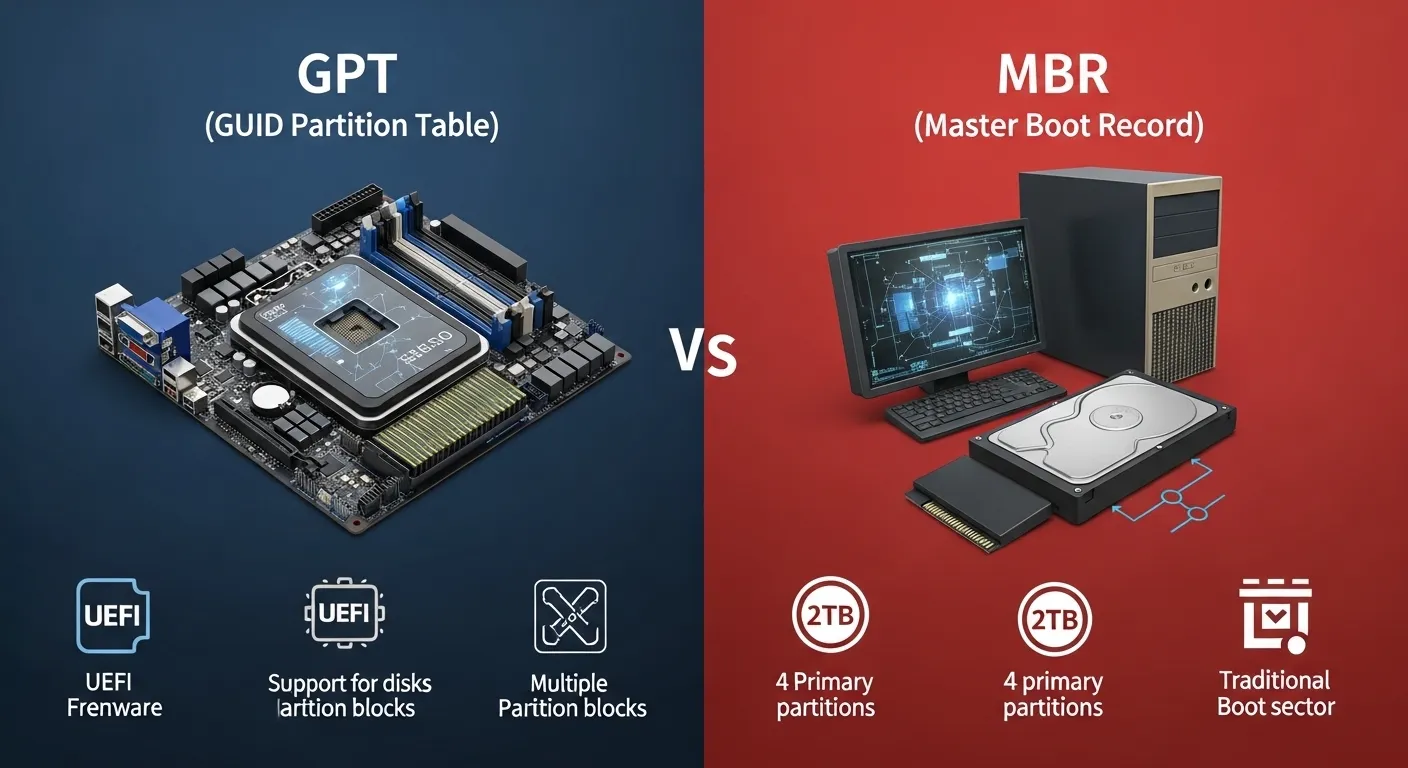
GPT (GUID Partition Table) and MBR (Master Boot Record) are two ways to organize data on a hard drive.
Quick difference:
| Feature | GPT | MBR |
| Age | Modern standard | Older standard |
| Maximum disk size | Over 2 TB | Up to 2 TB |
| Number of partitions | Up to 128 | Only 4 primary partitions |
| Boot system | UEFI | Legacy BIOS |
| Reliability | Better data protection | Basic protection |
Example
- A new gaming PC with UEFI firmware should use GPT.
- An old computer using Legacy BIOS usually requires MBR.
In short:
GPT is best for modern systems, while MBR works for older computers.
The Origin of GPT or MBR
MBR (Master Boot Record)
MBR was introduced in 1983 with early PC systems. It stored the boot information and partition table in the first sector of the hard drive. For many years, it worked well because hard drives were small.
However, as storage grew larger, MBR started to show limits:
- Maximum 2 TB disk size
- Only four primary partitions
- Single boot record that can become corrupted
GPT (GUID Partition Table)
GPT was created later as part of the UEFI firmware system. It was designed to fix the limits of MBR.
GPT introduced several improvements:
- Support for very large disks
- Many more partitions
- Backup partition tables for safety
Because of these advantages, GPT is now the modern standard for most computers.
British English vs American English Spelling
Unlike many search queries, GPT or MBR is not a spelling difference between British and American English. Instead, they are technical standards used worldwide.
Both terms mean the same thing everywhere.
| Term | Meaning | Region Difference |
| GPT | GUID Partition Table | No regional variation |
| MBR | Master Boot Record | No regional variation |
So whether someone is in the United States, the UK, or Asia, the terms GPT and MBR stay the same.
Which Should You Use?
Choosing between GPT and MBR depends mainly on your computer system and drive size.
Use GPT if:
- Your system supports UEFI
- Your drive is larger than 2 TB
- You want better reliability
- You are installing modern operating systems
Use MBR if:
- Your computer uses Legacy BIOS
- You are working with older hardware
- Compatibility with older systems is required
Simple rule:
| Situation | Best Choice |
| New PC | GPT |
| Large hard drive | GPT |
| Old computer | MBR |
| Legacy systems | MBR |
Most modern systems today should use GPT.
Common Mistakes with GPT or MBR
Many users make small mistakes when choosing between these options.
1. Using MBR on large drives
Mistake: Using MBR for a 4 TB drive
Problem: Only 2 TB will be usable
2. Installing Windows in the wrong mode
Mistake: UEFI system with MBR disk
Problem: Boot errors during installation
3. Confusing partition style with file system
Some users think GPT or MBR is the same as NTFS or FAT32.
Correct understanding:
| Term | Purpose |
| GPT / MBR | Partition style |
| NTFS / FAT32 | File system |
4. Not backing up before converting
Converting between GPT and MBR may erase data if done incorrectly.
Read More.
GPT or MBR in Everyday Examples
Here are simple real-world situations where these terms appear.
In Operating System Installation
During Windows setup, you might see:
“Windows cannot be installed on this disk. The selected disk is GPT.”
This happens when boot mode and partition style do not match.
In Tech News
Tech articles may say:
“Modern systems now prefer GPT partition tables for large storage drives.”
In IT Support Emails
Example message:
“Please convert the disk to GPT before installing Windows 11.”
On Social Media
A tech user might post:
“My 3TB drive only shows 2TB. Turns out I used MBR instead of GPT.”
These examples show how the terms appear in daily tech conversations.
Read More. Disc or Disk: Know the Correct Spelling Clearly Today
GPT or MBR – Google Trends & Usage Data
Search interest for GPT or MBR usually comes from people:
- Installing Windows
- Formatting new drives
- Fixing boot errors
Popular search regions
Common countries searching for this topic include:
| Country | Reason |
| United States | PC building and upgrades |
| India | Windows installation tutorials |
| Pakistan | Laptop repair and OS setup |
| United Kingdom | Tech support queries |
Most searches appear in technology forums, PC repair guides, and installation tutorials.
As newer systems use UEFI, interest in GPT continues to grow.
GPT vs MBR Comparison Table
| Feature | GPT | MBR |
| Full name | GUID Partition Table | Master Boot Record |
| Release period | Modern standard | 1980s standard |
| Maximum partitions | Up to 128 | 4 primary |
| Disk size support | Very large drives | Up to 2 TB |
| Boot system | UEFI | Legacy BIOS |
| Data protection | Backup partition tables | Single boot sector |
FAQs
1. Is GPT better than MBR?
Yes, GPT is generally better because it supports larger drives, more partitions, and better reliability.
2. Can Windows run on both GPT and MBR?
Yes. However, Windows installed in UEFI mode requires GPT.
3. Can I convert MBR to GPT?
Yes. Many tools allow conversion, but always back up your data first.
4. Does GPT make a computer faster?
Not directly. GPT mainly improves storage support and reliability, not speed.
5. Should I choose GPT for a new SSD?
Yes. Most modern SSD installations use GPT.
6. Why does Windows say “Disk is GPT”?
This usually happens when you boot the installer in Legacy mode instead of UEFI.
7. Can older computers use GPT?
Some older computers cannot boot from GPT drives because they only support Legacy BIOS.
Conclusion
Understanding GPT or MBR is important when installing operating systems or preparing a hard drive. These two partition styles control how a computer organizes and accesses storage.
MBR is the older format, introduced in early PC systems. It works well with legacy hardware but has several limits.
It supports only four primary partitions and drives up to 2 TB. Because of these restrictions, it is slowly becoming outdated.
GPT was created to solve these problems. It supports much larger disks, more partitions, and better data protection.
Modern computers using UEFI firmware are designed to work best with GPT. This is why most new installations of Windows and other operating systems recommend it.
For most users today, the safest choice is GPT, especially when using modern hardware or large drives. However, MBR still remains useful for older computers and legacy systems.
By knowing the difference, you can avoid installation errors, use your full disk capacity, and set up your system the right way from the start.

Claire Keegan an Irish author famous for powerful short stories. She writes in a clear and emotional style.